

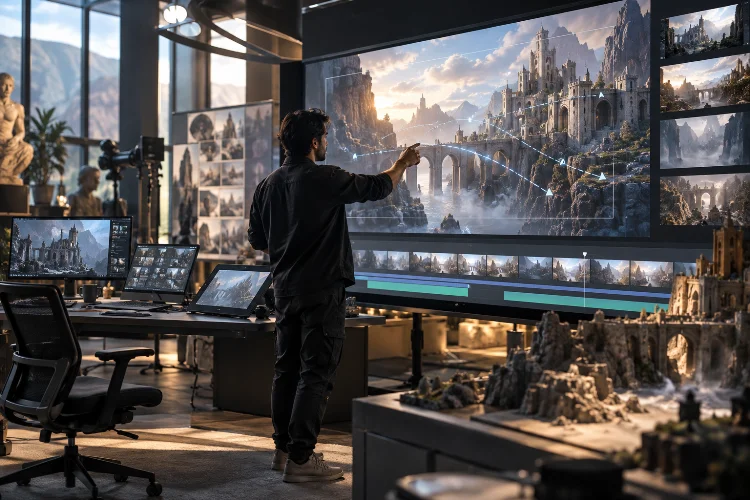
Creating a cinematic moment in a video game used to involve complicated rendering pipelines, expensive software, and plenty of patience.
Today, real-time game engines have changed the process, allowing developers to create visually impressive scenes directly inside interactive environments.
Whether you’re developing a story-driven adventure, producing a game trailer, or building an interactive experience, cinematic sequences can turn ordinary gameplay moments into something memorable.
Building cinematic sequences with real-time game engine tools gives creators greater flexibility over cameras, animation, lighting, sound, and storytelling.
Instead of rendering every frame separately, developers can preview changes almost instantly and adjust their scenes as the project evolves.
Powerful tools such as Unreal Engine Sequencer, Unity Timeline, and Cinemachine make this workflow accessible to independent creators and professional development teams alike.
However, impressive cinematics require more than dragging cameras across a timeline. Good results depend on planning, composition, synchronization, performance optimization, and smooth gameplay integration.
This guide explores how to create cinematic sequences step by step, from initial planning to final polishing, using practical techniques that make real-time filmmaking more efficient and engaging.
1. Understanding Cinematic Sequences in Real-Time Game Engines
What Are Real-Time Cinematic Sequences?
A cinematic sequence is a collection of coordinated visual and audio events designed to communicate information, establish atmosphere, or advance a story.
In video games, these sequences often involve animated characters, moving cameras, dramatic lighting, environmental effects, and carefully timed dialogue.
Traditional cinematic production frequently relies on offline rendering, where completed frames are generated before the audience watches them.
Real-time cinematics operate differently. The engine processes the scene while the game or application is running, allowing creators to preview visual changes and potentially incorporate interactive elements.
For example, imagine a game character entering an ancient temple. The camera slowly reveals a massive statue while dust particles float through sunlight entering from the ceiling.
Instead of producing this entire moment as a fixed video file, developers can assemble it using existing environmental assets, camera animation, lighting controls, and particle systems.
The sequence can then play directly inside the game world.
Why Real-Time Tools Matter
One of the biggest advantages of real-time cinematic production is creative flexibility.
Developers can reposition cameras, adjust character movement, and experiment with lighting without repeatedly rendering complete video sequences.
This encourages experimentation because visual feedback is available directly inside the editor.
Another important benefit is consistency. Cinematics can reuse the same character models, environments, and materials found during gameplay.
The result feels more connected to the interactive experience, particularly when player customization and environmental changes remain visible.
However, real-time rendering also introduces performance constraints. Every visual effect must operate within the processing capabilities of the target hardware.
2. Planning Your Cinematic Before Opening the Timeline
Define the Purpose of the Scene
Before adding a camera or animation track, determine what the cinematic needs to accomplish.
Is it introducing a major character, revealing an important location, creating suspense, or celebrating a victory?
A clear purpose prevents unnecessary camera movement and excessive visual effects.
Suppose you’re creating a fantasy adventure where the player discovers a hidden underground city.
The cinematic could begin with a close-up of the character’s surprised expression, transition into a wide environmental reveal, and finish by highlighting an important building.
Each shot serves a specific narrative function.
Create a Simple Shot List
A shot list describes the camera angles, actions, and approximate durations required for the scene.
For a 30-second reveal sequence, you might allocate five seconds to the character approaching a doorway, eight seconds to opening the entrance, and ten seconds to revealing the environment.
The remaining seven seconds could focus on a mysterious object that establishes the next gameplay objective.
These timings aren’t fixed rules. They’re starting points that help organize production.
Planning durations early also makes it easier to coordinate character animation, sound effects, and music.
Use Storyboards and Rough Blocking
Storyboards provide visual references for important compositions and transitions.
You don’t need professional illustration skills to create useful storyboards. Simple sketches showing camera position, character movement, and visual direction are usually enough.
Inside the engine, replace those sketches with rough blocking.
Use temporary character models, basic geometry, and simple cameras to test the flow of the scene before investing in detailed animation.
This process helps identify awkward transitions, unnecessary shots, and confusing character positions while changes are still relatively inexpensive.
3. Building Cinematics With Unreal Engine Sequencer
Setting Up Your First Level Sequence
Unreal Engine provides Sequencer, a timeline-based editing system designed for coordinating animations, cameras, lighting, and other scene properties.
Start by opening your project and creating a Level Sequence through the Content Browser or the Cinematics menu.
Give the asset a descriptive name such as LS_TempleReveal_01.
When you open the sequence, you’ll see a timeline where tracks represent actors and properties controlled over time.
You can add characters, cameras, lights, and environmental objects to this timeline.
For example, adding a door actor allows you to animate its rotation, creating the appearance of the door slowly opening.
Understanding Tracks and Keyframes
Tracks organize the different elements of a cinematic.
A transform track can control position and rotation, while animation tracks handle character movement. Property tracks can modify settings such as lighting intensity or camera focal length.
Keyframes define values at specific moments.
Imagine positioning a camera at the beginning of a sequence and setting another position five seconds later.
Sequencer interpolates between those keyframes, producing movement that can be refined through interpolation settings and curve editing.
For smoother results, examine the acceleration and deceleration of the camera rather than relying entirely on default movement curves.
Creating Camera Cuts
The Camera Cut Track determines which cinematic camera appears during playback.
You can create multiple Cine Camera Actors and assign them to different portions of the sequence.
For example, one camera might establish the location, while another focuses on a character’s reaction.
You can use direct cuts for sudden changes or blends for gradual transitions.
For longer projects, organizing individual shots into separate sequences can make editing easier and reduce timeline complexity.
This approach also allows different artists to work on seperate shots without constantly modifying the same sequence.
4. Using Unity Timeline and Cinemachine for Cinematic Production
Creating a Timeline Asset
Unity offers Timeline, a visual editing tool for coordinating animation, audio, activation states, and other time-based events.
Begin by creating an empty GameObject to manage the cinematic.
Add or configure a Playable Director component and associate it with a Timeline asset.
The Playable Director controls playback and connects timeline tracks to objects in the scene.
Once the asset is ready, you can add animation tracks for characters, audio tracks for dialogue, and activation tracks for objects that should appear during specific moments.
This setup provides a straightforward workflow for creating scripted sequences without writing complex animation code.
Managing Virtual Cameras With Cinemachine
Cinemachine provides flexible camera systems that can track subjects, maintain framing, and transition between different viewpoints.
Instead of manually programming every camera movement, developers can configure Cinemachine Cameras around specific visual objectives.
Imagine creating a dialogue scene between two characters.
One camera might capture both characters in a medium shot, while two additional cameras provide individual close-ups.
These perspectives can be arranged using Cinemachine Shot Clips on a Timeline track.
Placing clips next to each other produces direct cuts, while overlapping them creates transitions between cameras.
This approach is especially useful when creating dialogue-heavy scenes that require precise visual timing.
Coordinating Timeline Events
Timeline becomes even more powerful when cinematic actions communicate with other gameplay systems.
Signal tracks can trigger responses such as activating an effect or notifying gameplay logic.
For example, a cinematic could activate a glowing artifact when a character touches it.
The visual animation and gameplay response can be synchronized around the same narrative moment.
However, developers should test these interactions carefully. A signal that works during normal playback may require additional handling when a cinematic is skipped or restarted.
5. Designing Professional Camera Movement and Composition
Use Film Language With a Purpose
Strong cinematography directs the audience’s attention without making every shot feel overly dramatic.
Wide shots establish location and scale. Medium shots emphasize relationships, while close-ups reveal emotional details.
Camera angles also influence perception.
A low-angle perspective can make a villain appear powerful, while a slightly elevated angle may communicate vulnerability.
However, these techniques work best when applied thoughtfully.
Using dramatic camera angles during every conversation can weaken their impact during genuinely important moments.
Animate Cameras Naturally
Real-time engines support camera movement through transform keyframes, target tracking, splines, and procedural camera systems.
A slow dolly movement can build tension, while a tracking shot can follow a character through a complicated environment.
For example, imagine a character walking through a crowded futuristic marketplace.
A camera could move alongside the character while background activity creates depth and visual energy.
Pay attention to movement speed and acceleration.
Abrupt starts, unexpected stops, and overly aggressive camera rotations can make otherwise beautiful cinematics feel uncomfortable.
Control Focus and Framing
Depth of field allows creators to emphasize important subjects by controlling which parts of the image remain sharp.
A conversation might begin with one character in focus before gradually shifting toward another character reacting silently in the background.
This technique helps communicate emotional information without additional dialogue.
Composition is equally important.
Use leading lines, environmental shapes, and negative space to guide the viewer’s attention.
Keep essential subjects readable, especially when the scene includes complex backgrounds, particle effects, or moving characters.
6. Combining Character Animation, Lighting, and Audio
Build Convincing Character Performances
Character animation plays a major role in how players interpret cinematic moments.
Even a technically impressive camera sequence can feel disappointing when characters move unnaturally.
Start with basic blocking to establish positions and movement direction.
Then refine body language, gestures, facial expressions, and timing.
For emotional dialogue, small movements can be surprisingly effective.
A character briefly looking away before answering a difficult question may communicate more than an exaggerated facial animation.
Animation blending also matters when transferring characters between gameplay behavior and cinematic performances.
Smooth transitions prevent sudden posture changes that could disrupt immersion.
Create Atmosphere Through Lighting
Lighting controls mood, depth, and visual hierarchy.
Warm colors can establish comfort or nostalgia, while cooler lighting often supports mysterious or emotionally distant scenes.
Consider a cinematic set inside an abandoned research facility.
A few flickering lights, reflective surfaces, and long shadows could create tension without requiring complicated visual effects.
For real-time production, avoid assuming that every scene needs the maximum possible lighting quality.
Strategic placement often delivers better results than adding numerous expensive dynamic lights.
The enviroment should remain visually consistent when control returns to the player.
Synchronize Audio and Visual Events
Sound design helps cinematic moments feel believable.
Footsteps, mechanical sounds, ambient effects, dialogue, and background music should match the timing of visible actions.
For example, a heavy metal door opening should produce a sound that matches its movement and apparent weight.
Music can reinforce emotional changes, but silence is equally useful.
A sudden absence of background sound before a dramatic reveal can create anticipation more effectively than an overly loud soundtrack.
Keep audio timing organized inside the timeline and review synchronization during actual gameplay playback.
7. Connecting Cinematic Sequences to Gameplay
Trigger Cinematics Through Player Actions
Cinematic sequences become more engaging when they respond naturally to gameplay events.
A player entering a specific area might trigger an environmental reveal. Defeating a boss could activate a victory sequence, while interacting with an object might begin a conversation.
In Unreal Engine, Blueprint scripts can reference a Level Sequence and initiate playback when certain conditions are met.
Unity developers can use scripts to control a Playable Director when gameplay events occur.
These systems help connect directed storytelling with the interactive world.
Handle Player Control Carefully
One common production mistake involves disabling player input without planning how control will return.
When a cinematic begins, developers may temporarily restrict movement, adjust character orientation, or switch camera systems.
At the end, those settings must return to a valid gameplay state.
Imagine a cinematic where the player approaches a bridge that collapses.
Once the sequence ends, the player’s position, camera direction, and movement controls should support the next gameplay objective.
Poor transitions can leave characters facing the wrong direction or stuck in unwanted animation states.
Support Skipping and Story-State Changes
Players appreciate having control over lengthy story sequences.
However, skipping a cinematic shouldn’t prevent important gameplay changes from happening.
If a sequence opens a door, activates a mission, or modifies an NPC relationship, those outcomes must remain correct even when playback ends early.
A reliable method is to separate essential story-state updates from purely visual presentation.
The game can then apply required changes whenever the sequence completes or is skipped.
This makes cinematic playback more dependable and reduces progression bugs.
8. Optimizing Real-Time Cinematic Performance
Understand the Frame-Time Budget
Visual quality must be balanced against rendering performance.
A game running at 60 frames per second has approximately 16.7 milliseconds to process each frame. At 30 frames per second, the available budget is approximately 33.3 milliseconds.
That time includes far more than rendering alone.
Animation, scripting, physics, asset streaming, and other systems all contribute to total frame time.
A cinematic with expensive lighting and detailed character models may struggle when combined with demanding environmental effects.
Optimize What the Camera Actually Sees
Cinematic cameras offer a useful advantage: they establish exactly which areas deserve visual attention.
Objects outside the camera view rarely need the same level of detail as important foreground elements.
Use appropriate levels of detail, texture streaming, and carefully managed lighting to reduce unnecessary rendering work.
Particle effects should also be evaluated based on their contribution to the scene.
A few strategically positioned effects can communicate atmosphere without filling the screen with expensive simulations.
Profile Instead of Guessing
Performance problems don’t always originate from the most visually complicated object.
Unexpected bottlenecks may involve animation evaluation, material shaders, excessive draw calls, or asset loading.
Unreal Insights and Unreal Engine’s performance statistics can help developers understand where frame time is being spent.
Unity also provides profiling tools for identifying rendering and scripting costs.
Test cinematics on the intended hardware rather than relying entirely on powerful development machines.
Developers should also check frame pacing because inconsistent frame delivery can make motion appear uneven even when average frame rates seem acceptable.
9. A Practical Example: Creating a 30-Second Cinematic
Step 1: Build the Scene
Imagine creating a short science-fiction cinematic where a character discovers an abandoned spacecraft.
Begin with an existing environment containing a landing platform, damaged equipment, and the spacecraft itself.
Place the character near the entrance and establish the initial gameplay camera position.
Use placeholder animations until the overall sequence feels natural.
Step 2: Design the Shot Timing
Divide the cinematic into five connected moments.
<|im_end|>
<|im_start|>assistant<|final>
The first five seconds show the character approaching the spacecraft. The next eight seconds introduce a slow camera movement revealing the damaged exterior.
Seven seconds focus on the character inspecting a mysterious symbol, followed by six seconds showing the spacecraft’s interior lights activating.
The final four seconds return the camera to the character as gameplay resumes.
This structure creates a clear beginning, middle, and ending without making the sequence unnecessarily long.
Step 3: Add Animation and Effects
Use the timeline to synchronize character movements with camera transitions.
As the character approaches the spacecraft, add subtle head movements to suggest curiosity.
When the symbol appears, adjust the camera composition to emphasize its importance.
Introduce lighting changes and small particle effects when the spacecraft activates.
The important detail is timing. Every visual event should contribute to the scene’s progression.
Step 4: Connect the Gameplay Trigger
Configure the sequence to begin when the player interacts with a nearby control panel.
During playback, restrict unnecessary movement while keeping relevant UI and audio systems functional.
When the sequence finishes, restore normal gameplay and activate the next mission objective.
Finally, test what happens if the player skips the cinematic, re-enters the area, or reloads a saved game.
This small project provides practical experience with camera animation, timeline editing, lighting, sound, and gameplay integration.
10. Improving Your Cinematic Production Workflow
Organize Assets for Faster Iteration
As projects grow, maintaining organized cinematic assets becomes increasingly important.
Use consistent naming conventions for sequences, camera actors, animation clips, and audio files.
For example, naming a sequence SEQ_LabReveal_01 immediately communicates its purpose.
Keep related assets grouped in dedicated folders rather than scattering them throughout the project.
Reusable camera presets and dialogue templates can also save considerable production time.
Review Scenes From the Player’s Perspective
A cinematic that looks excellent inside the editor might feel different during actual gameplay.
Test the entire experience, including what happens before and after playback.
Watch for awkward camera transitions, missing sounds, clipping objects, and unexpected character movement.
Pay attention to accessibility features such as subtitles, readable dialogue timing, and alternatives to excessive camera shake.
Small issues can become particularly noticeable during close-up shots.
Keep Creativity Ahead of Complexity
It’s tempting to experiment with every available cinematic feature.
However, more elaborate effects don’t automatically produce stronger storytelling.
Sometimes a carefully framed close-up communicates an important moment better than an elaborate camera movement.
Evaluate every technical decision according to its contribution to the experience.
The most effective cinematic workflow combines technical precision with creative restraint, allowing developers to experiment without losing sight of the intended emotional impact.
Building cinematic sequences with real-time game engine tools opens exciting opportunities for game developers, filmmakers, and digital storytellers.
With platforms such as Unreal Engine Sequencer, Unity Timeline, and Cinemachine, creators can coordinate camera movement, character animation, lighting, audio, and gameplay events inside a flexible production environment.
The key to successful cinematic design is combining thoughtful planning with efficient technical execution.
Clear shot composition, believable animation, reliable gameplay transitions, and consistent performance all contribute to a more immersive experience.
You don’t need an enormous development budget to begin experimenting. Start with a simple 30-second scene, explore different camera techniques, and gradually introduce more sophisticated effects.
Most importantly, keep improving through practical testing and creative experimentation.
Ready to create your first cinematic? Open your favorite game engine, build a short sequence, and turn an ordinary game moment into something unforgettable.